Ordering & Suppliers
Manage suppliers, set par levels, create purchase orders, and configure automated ordering with Autopilot.
Happy Bar's ordering system helps you maintain optimal stock levels by tracking suppliers, setting par levels, generating order suggestions, and automating purchase orders.
Suppliers
Add a Supplier
Navigate to Suppliers in the sidebar and click Add Supplier.
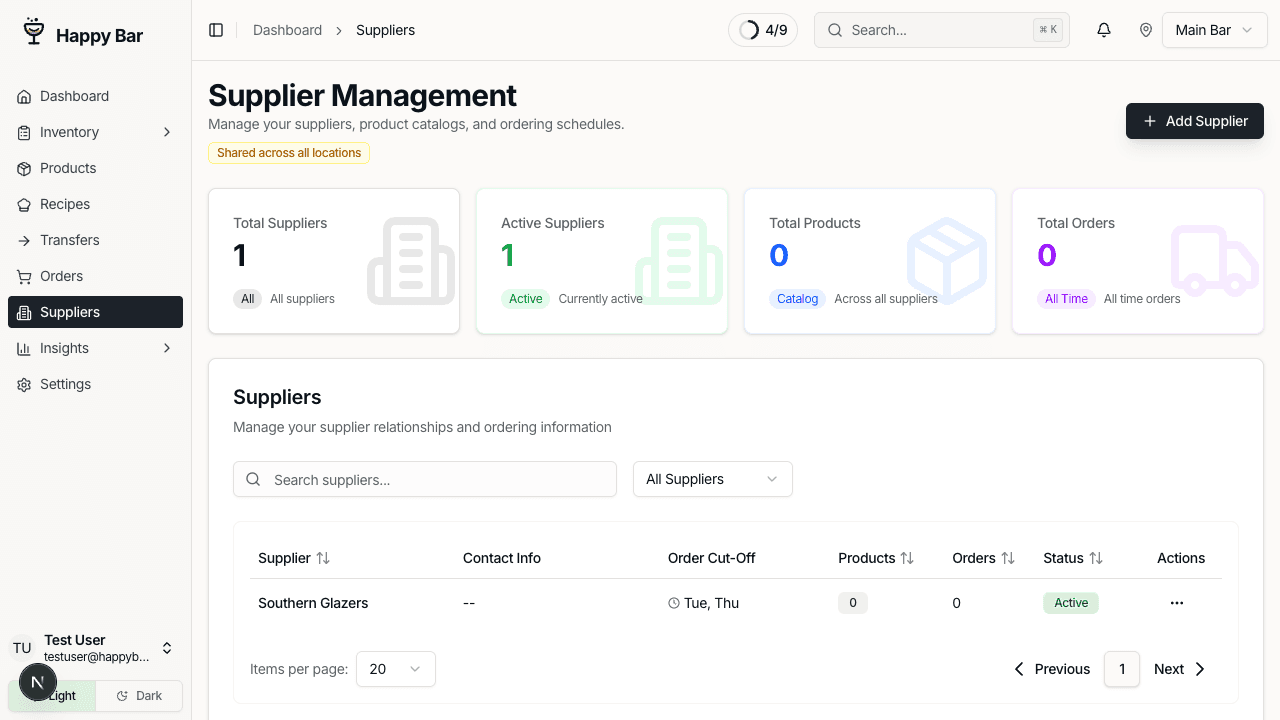
Fill in the supplier details:
- Supplier Name — the vendor name (required)
- Account Number — your account number with this supplier
- Order Cutoff Days — which days of the week you can submit orders
- Order Cutoff Time — the latest time you can place an order on a cutoff day
- Delivery Days — which days the supplier typically delivers
Click Add Supplier to save.
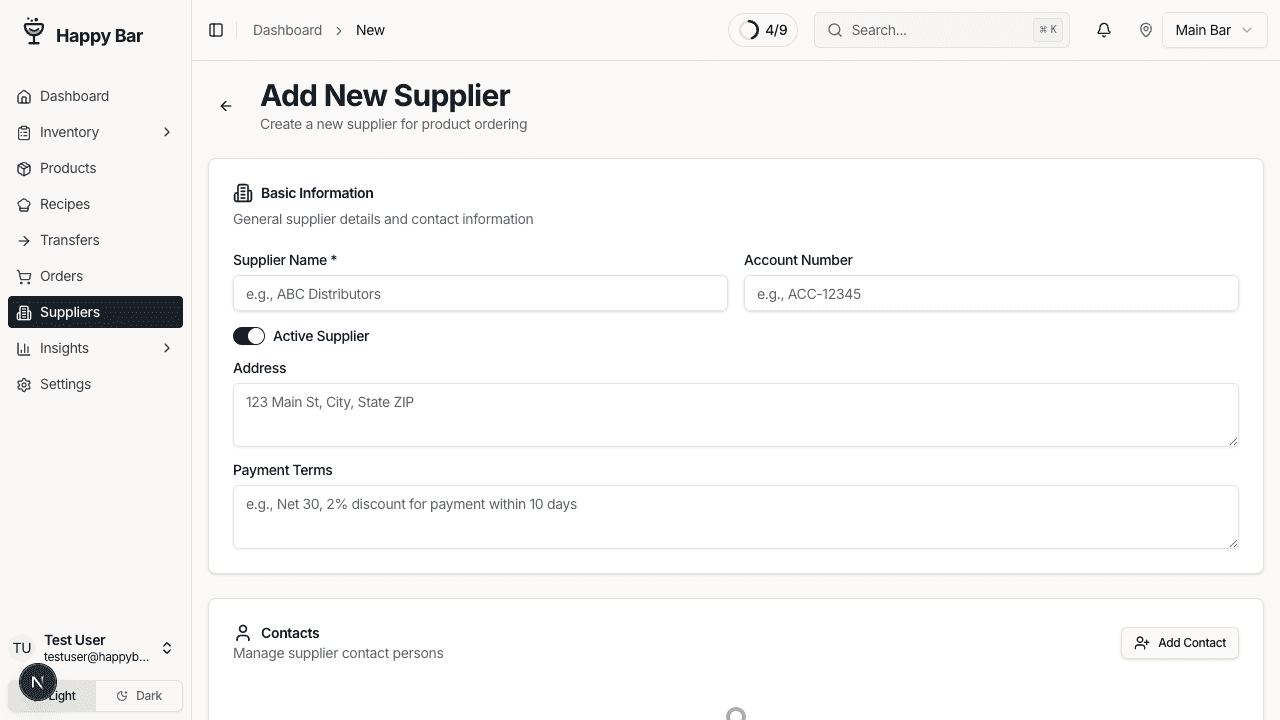
Manage Suppliers
The suppliers page shows all your vendors with key information:
- Contact info — email and phone number
- Order cut-off — days and time (e.g., "Mon, Wed, Fri at 2:00 PM")
- Products — number of products you order from this supplier
- Orders — total order count
- Status — Active or Inactive
You can deactivate a supplier to temporarily stop ordering from them without losing their data.
Assign Products to Suppliers
To link products to a supplier:
- Navigate to Products
- Select one or more products using the checkboxes
- Click Assign to Supplier in the bulk actions bar
- Choose the supplier from the dropdown
This tells Happy Bar which supplier to recommend when generating order suggestions.
Par Levels
Par levels define the minimum quantity you want to keep on hand for each product at each location.
Set Par Levels
Navigate to Inventory > Par Levels.
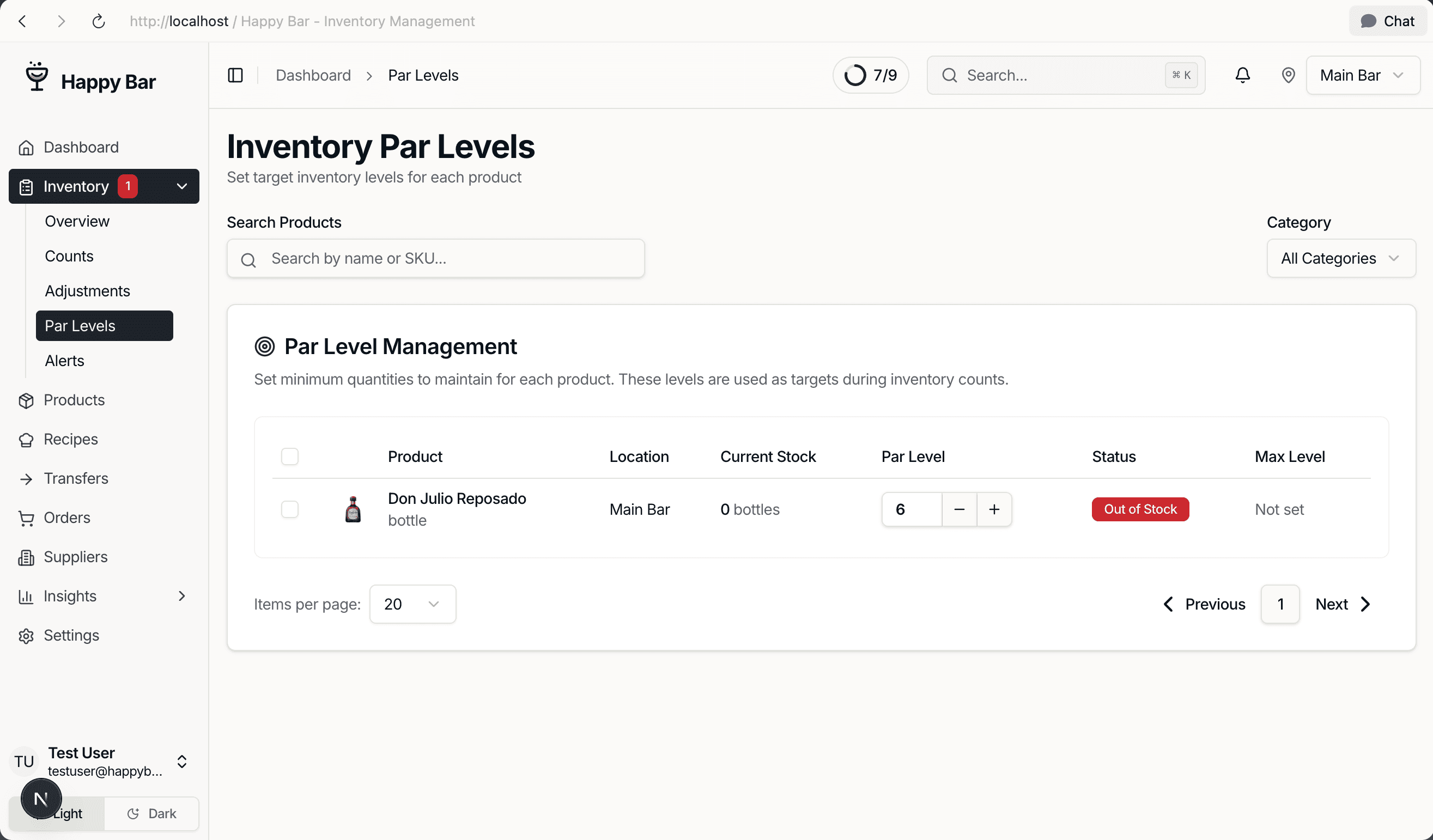
For each product, you'll see:
- Current Stock — quantity on hand based on your last count
- Par Level — the minimum quantity to maintain (editable)
- Status — color-coded stock status
- Max Level — optional maximum quantity
Use the + and - buttons or type directly to set par levels. Changes are tracked and saved when you click Save Changes.
Stock Status Indicators
| Status | Color | Meaning |
|---|---|---|
| Out of Stock | Red | Zero quantity on hand |
| Critical | Red | Below 50% of par level |
| Below Par | Orange | Below par level but above 50% |
| In Stock | Green | At or above par level |
Bulk Update Par Levels
Select multiple products using checkboxes, then click Bulk Update Par Levels to set the same par level across all selected items.
Use the Category filter to focus on specific product categories (e.g., set par levels for all spirits at once).
Creating Orders
Manual Order
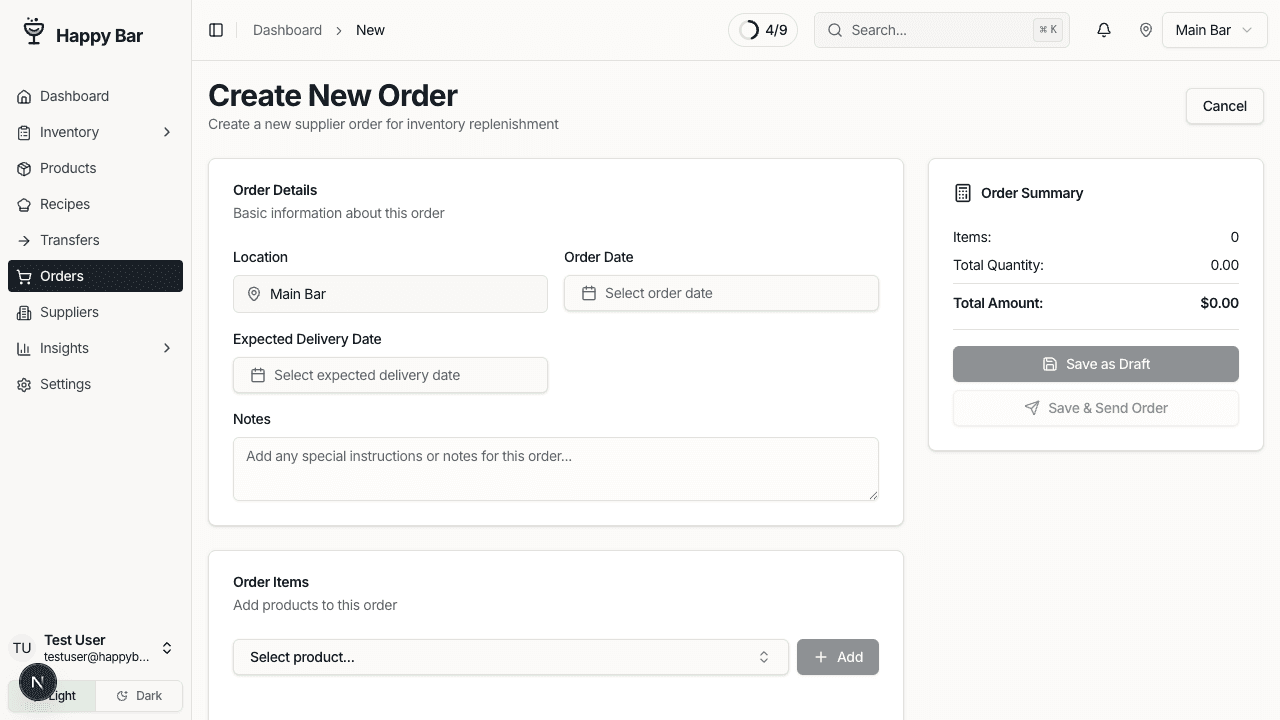
Navigate to Orders in the sidebar and click New Order.
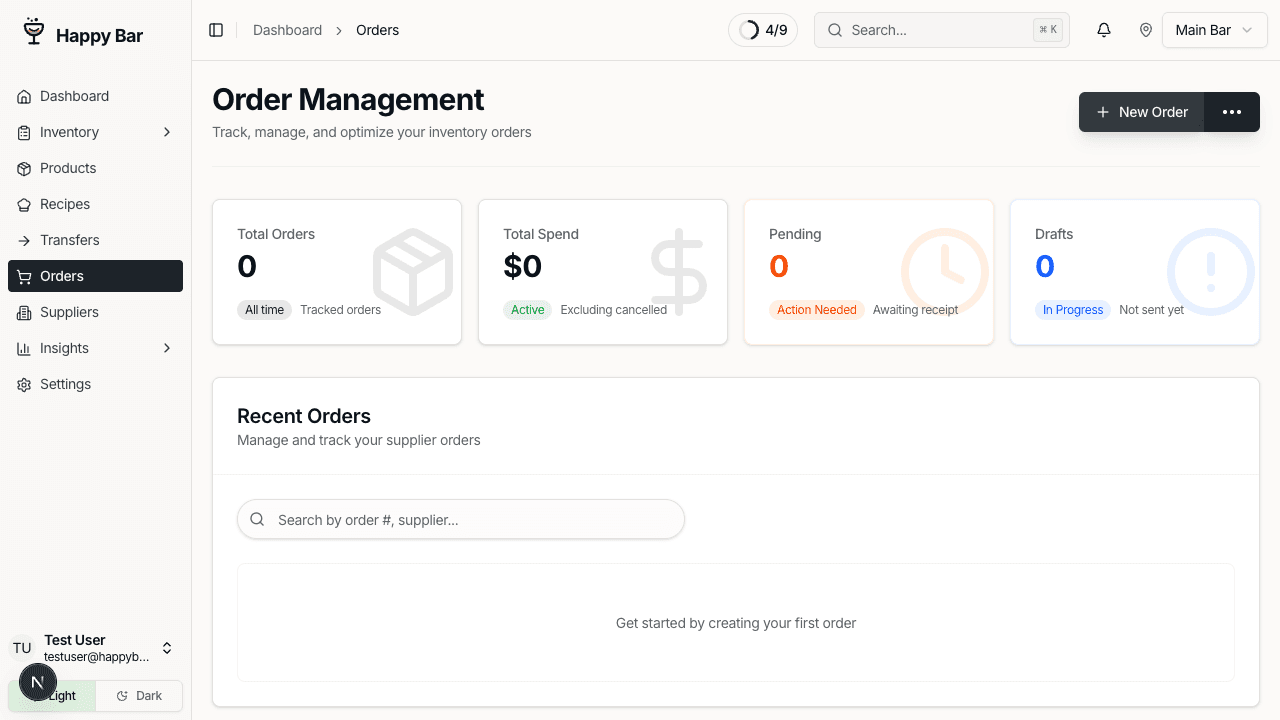
Fill in the order details:
- Order Date — when the order is placed
- Expected Delivery Date — when you expect to receive it
- Notes — optional notes for this order
Add Items to the Order
Click Add Item to add products:
- Search for a product by name
- If the product has multiple suppliers, select the supplier
- Enter the quantity to order
- The unit cost auto-populates from the product record
- Choose the ordering unit — Unit or Case
Repeat for each item you want to order.
Order Actions
- Save as Draft — save the order without sending it
- Send Order — mark the order as sent to the supplier
Order Suggestions
Happy Bar can automatically recommend what to order based on your inventory data.
View Suggestions
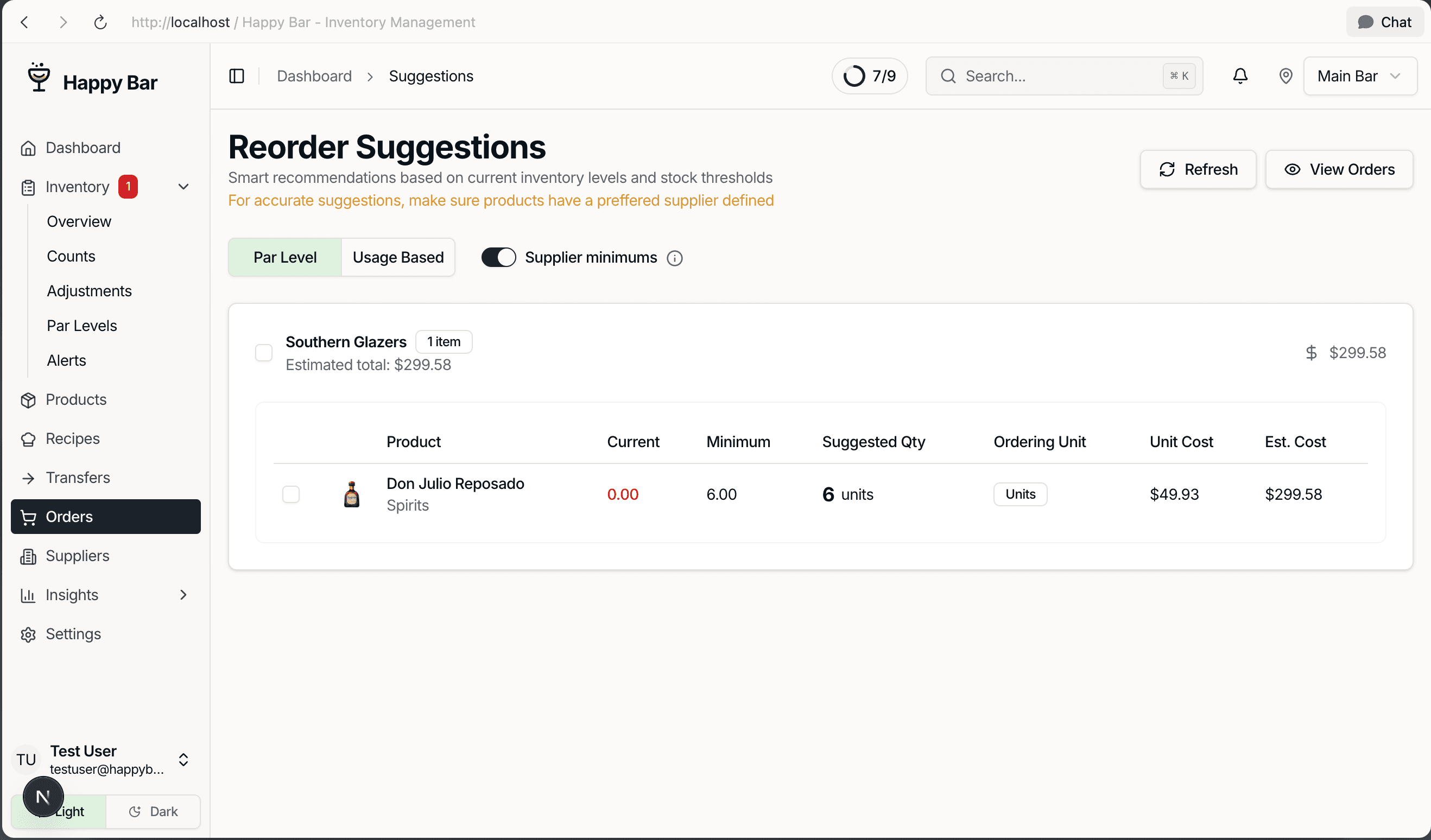
Navigate to Orders and click the dropdown menu next to New Order, then select Suggestions.
Configure Suggestion Mode
At the top of the suggestions page, you can configure:
- Mode — choose between:
- Par Level — suggests quantities to restore stock to par level
- Usage Based — suggests quantities based on historical sales velocity
- Days of Stock — for usage-based mode, how many days of inventory to order (default: 7)
- Respect Supplier Minimums — whether to enforce minimum order values
Review and Order
Suggestions are grouped by supplier. For each suggested item, you'll see:
- Product name and image
- Current stock level
- Suggested order quantity
- Unit cost and total cost
- An info button explaining why this quantity was suggested
You can:
- Adjust quantities before ordering
- Select individual items or entire supplier groups
- Click Create Draft Order to save for review
- Click Send Order to submit immediately
Receiving Orders
When an order arrives, navigate to Orders, find the order, and click Receive Items.
For each line item:
- Enter the quantity received
- Note any discrepancies between what was ordered and what arrived
- The order status will update to Received or Partially Received based on your entries
Upload Invoices
You can attach supplier invoices to orders:
- From the Orders page, click the dropdown and select Upload Invoice
- Optionally link the invoice to an existing sent order
- Upload the invoice image or PDF
- Happy Bar will auto-extract line items from the invoice
Autopilot Ordering
Autopilot automatically generates purchase orders on a schedule, so you never run out of stock.
Enable Autopilot
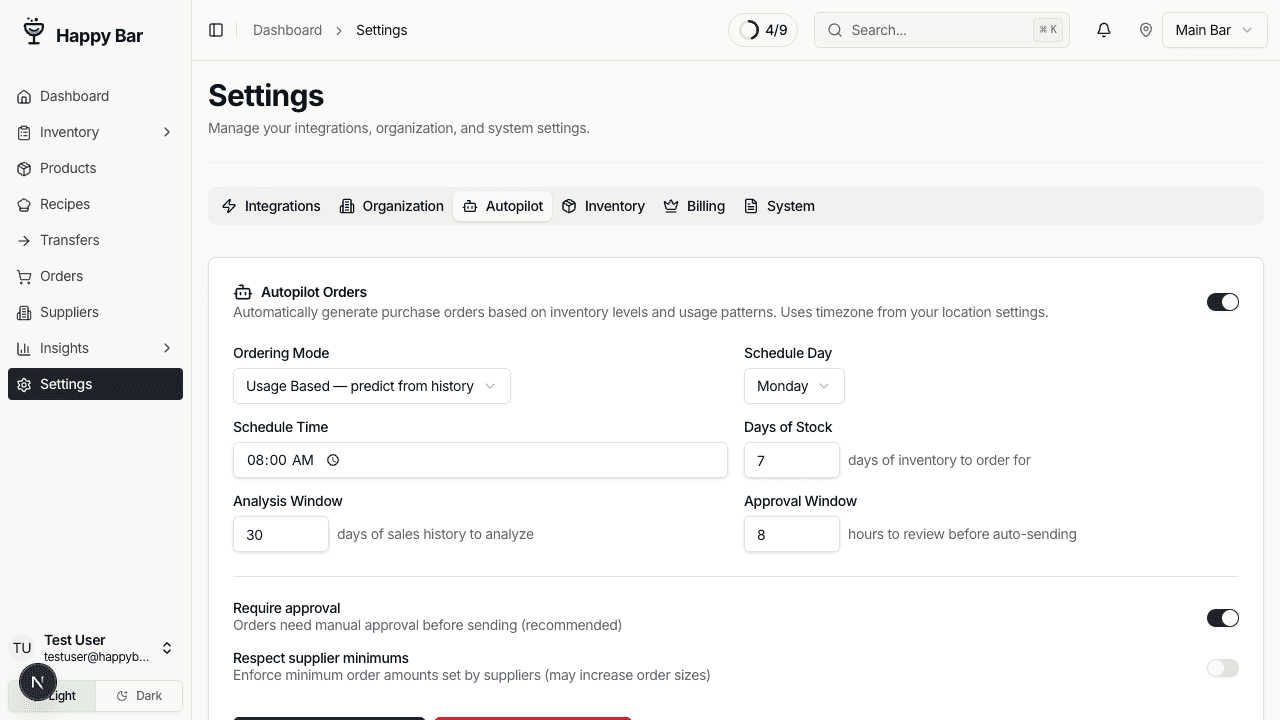
Navigate to Settings > Autopilot and toggle it on for the desired location.
Configure:
- Schedule Day — which day of the week to generate orders (e.g., Monday)
- Schedule Time — what time to create orders (e.g., 8:00 AM)
- Ordering Mode:
- Par Level — orders enough to restore stock to par levels
- Usage Based — orders based on historical consumption patterns
- Approval Required — if enabled, orders go to Pending Approval status and you must review before they're sent. If disabled, orders are sent automatically.
- Days of Stock — how many days of inventory to order for
- Analysis Window — how far back to look when calculating usage patterns
Review Autopilot Orders
If Approval Required is enabled, autopilot orders appear in your Orders list with a Pending Approval status and an Auto badge.
From the order, you can:
- Approve — send the order to the supplier
- Reject — cancel the auto-generated order
- Edit — adjust quantities before approving
If you don't review an order within the auto-send window, it will be sent automatically (configurable in settings).
Order Statuses
| Status | Meaning |
|---|---|
| Draft | Order created but not sent |
| Pending Approval | Auto-generated order awaiting review |
| Sent | Order submitted to supplier |
| Auto Sent | Autopilot order sent without manual approval |
| Partially Received | Some items received, others pending |
| Received | All items received |
| Cancelled | Order was cancelled |
Best Practices
- Set par levels for all products — this enables accurate order suggestions and autopilot
- Assign every product to a supplier — so Happy Bar knows who to order from
- Start with Approval Required — review autopilot orders for a few weeks to build confidence in the suggestions
- Keep supplier cutoff times accurate — this ensures orders are generated in time
- Review suggestions weekly — even with autopilot, a quick review catches edge cases
Next Steps
- Take an inventory count to establish accurate stock levels for ordering
- Connect your POS to enable usage-based ordering with real sales data