Inventory Counting
Take accurate inventory counts using Happy Bar's guided counting flow and tenthing method.
Regular inventory counts help you track stock levels, identify shrinkage, and make informed ordering decisions. Happy Bar guides you through counts area by area, using the tenthing method for precise measurements.
Count Types
Happy Bar supports three types of inventory counts:
| Type | Best For |
|---|---|
| Full Count | Complete inventory of all items across all storage areas. Run weekly or bi-weekly. |
| Spot Check | Quick count of high-value or fast-moving items. Run between full counts. |
| Cycle Count | Rotating count of different areas on a schedule. Spreads counting effort across the week. |
1. Create a New Count
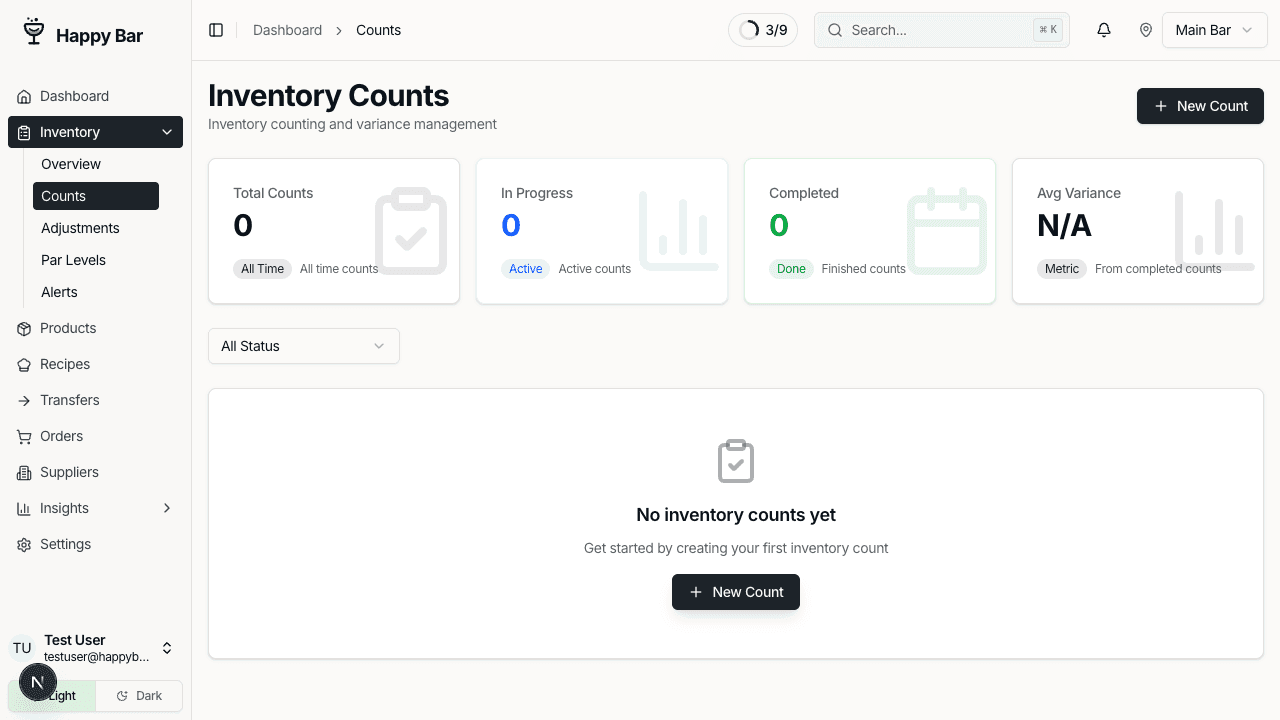
Navigate to Inventory > Counts in the sidebar and click New Count.
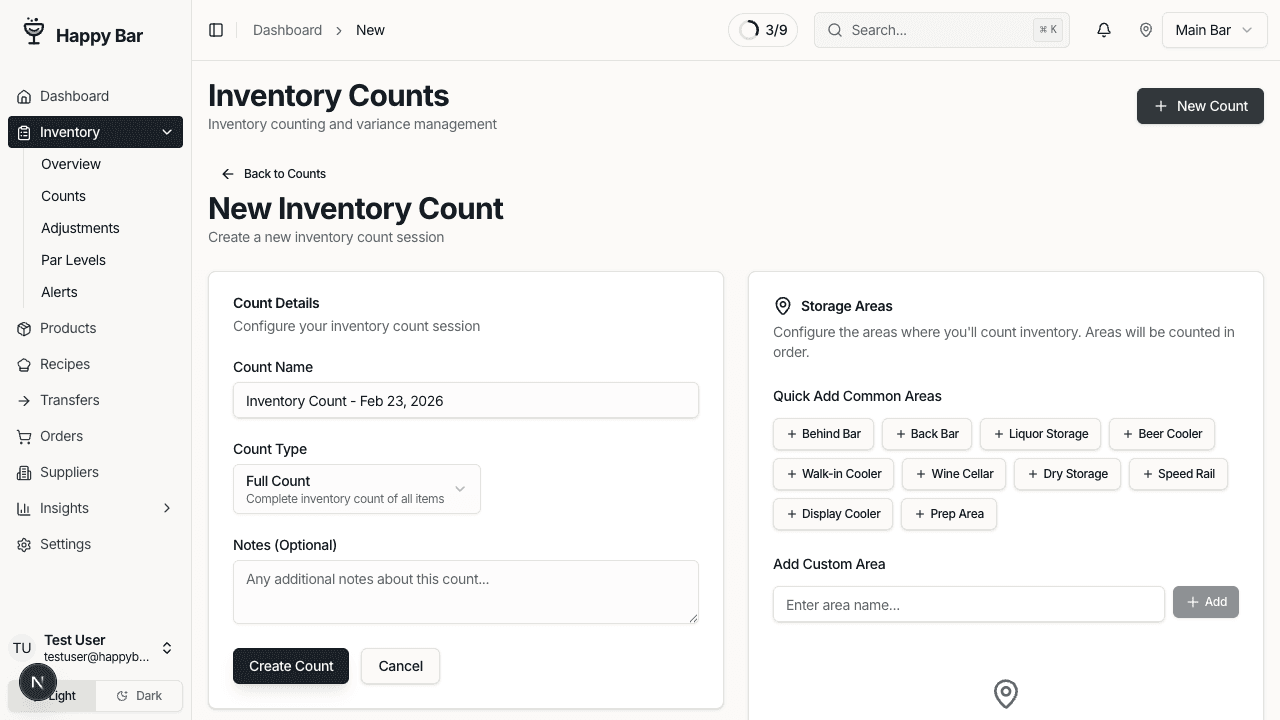
Fill in the count details:
- Count Name — auto-populated with today's date, but you can customize it
- Count Type — select Full Count, Spot Check, or Cycle Count
- Notes — optional notes about this count
Add Storage Areas
In the right panel, add the storage areas you want to count. These represent the physical areas you'll walk through — for example:
- Main Bar
- Back Bar
- Walk-In Cooler
- Dry Storage
- Kitchen
Drag to reorder areas. The order you set here is the order you'll count in.
Click Create Count when ready.
2. Start Counting
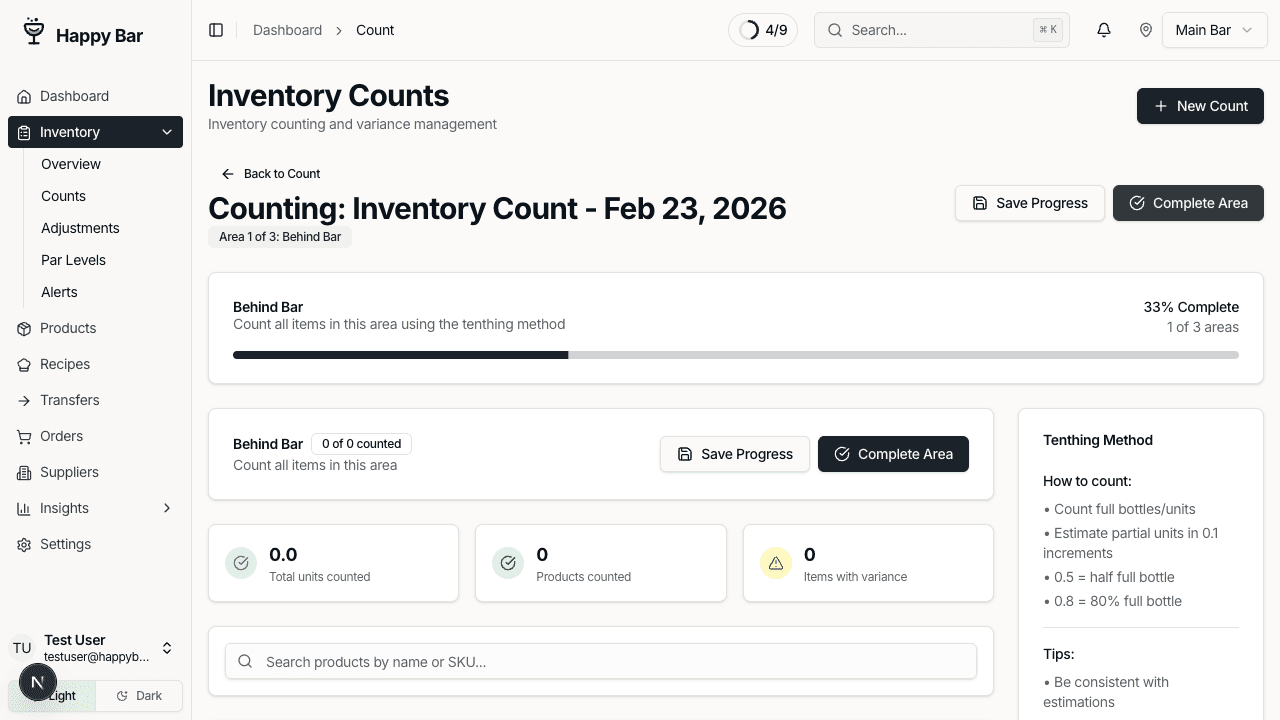
From the count detail page, click Start Counting to enter the counting interface.
You'll see:
- A progress bar at the top showing overall completion
- The current area name and which area number you're on (e.g., "Area 1 of 4")
- An area progress panel on the right showing all areas and their status
3. Count Items by Storage Area
For each product in the current area, you'll enter:
Full Units
Count the number of completely full, unopened bottles or units. Enter this number in the Full Units field.
Partial Units (Tenthing Method)
For open or partially used containers, estimate how full they are in 0.1 increments:
| Amount | Meaning |
|---|---|
| 1.0 | Full (same as 1 full unit) |
| 0.8 | About 80% full |
| 0.5 | Half full |
| 0.3 | About 30% full |
| 0.1 | Nearly empty |
Enter this value in the Partial Unit field.
Tips for accurate tenthing:
- Hold the bottle up to eye level
- Be consistent — if you estimate a bottle as 0.5, similar fill levels should also be 0.5
- Double-check high-value items like premium spirits
- Use the Notes field to flag anything unusual (damaged bottles, items in wrong location, etc.)
Running Totals
As you count, Happy Bar shows:
- The current stock quantity from your last count
- Any quantity already counted in other areas (if the same product appears in multiple storage areas)
- The running total across all areas
- Variance between expected and counted quantities
4. Complete Each Area
When you've counted all items in the current area:
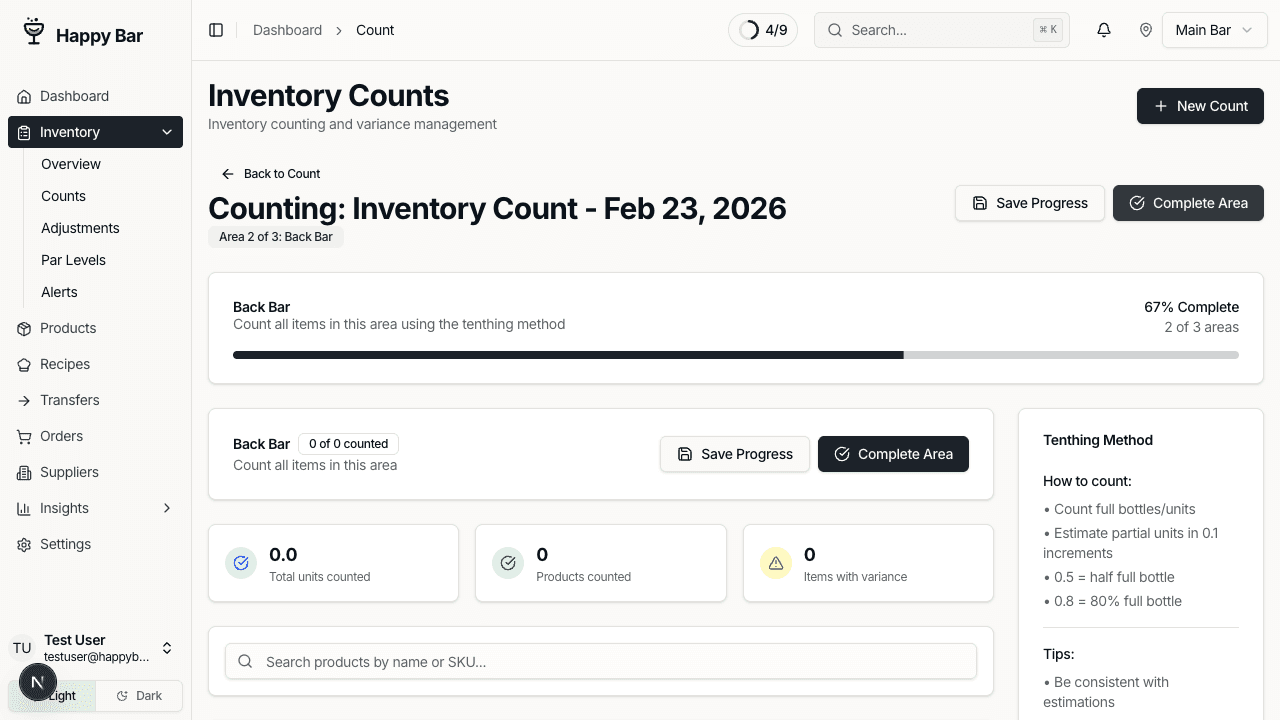
- Click Complete Area to mark it done and move to the next area
- Or click Save Progress to save your work and come back later
Completed areas show a green checkmark in the area progress panel. You can navigate back to a completed area to make corrections if needed.
5. Finalize Your Count
After completing all areas, review the count summary. You'll see:
- Total items counted and their value
- Variance summary — differences between expected and actual quantities
- Flagged items — products with significant variance
Click Approve to finalize the count. Approved counts update your inventory levels and are used in reporting.
6. View Count History
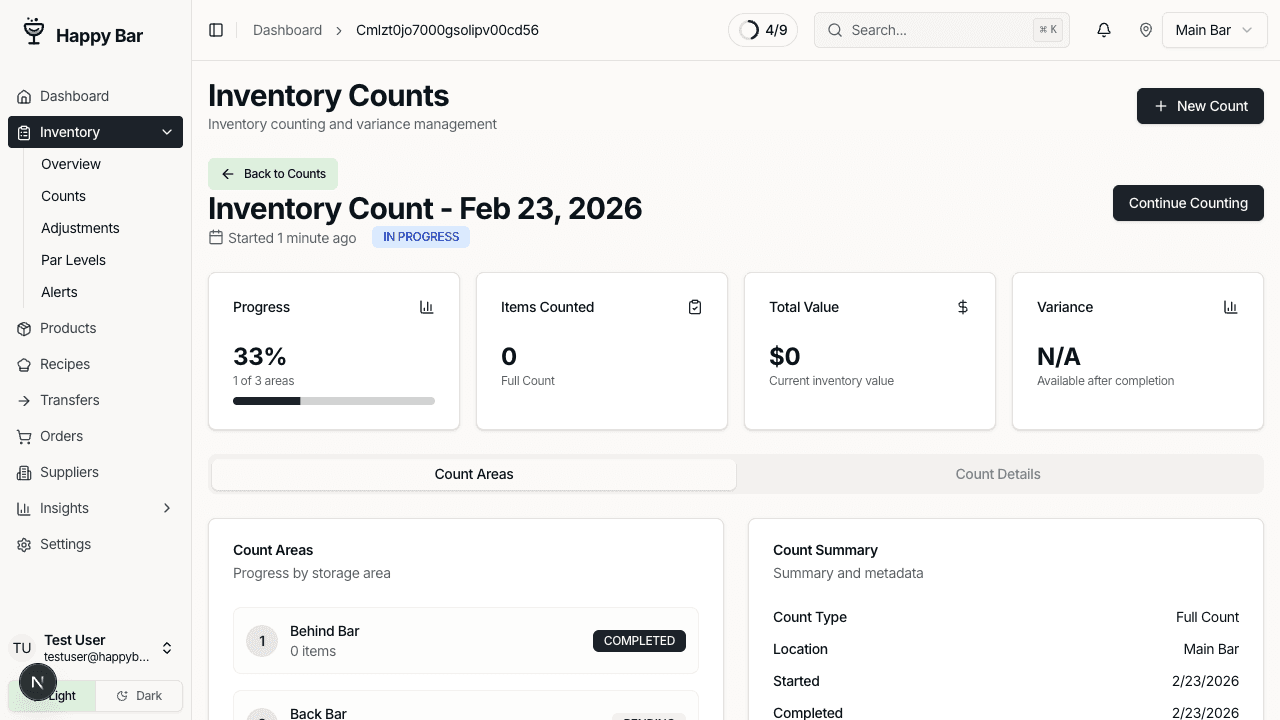
Navigate to Inventory > Counts to see all your past counts. Each count card shows:
- Count name and type
- Status (Draft, In Progress, Completed, Approved)
- Started date
- Progress bar (areas completed vs. total)
- Total inventory value
- Number of items counted
Use the status filter to find specific counts:
- Draft — counts created but not started
- In Progress — counts that have been started but not completed
- Completed — counts that are done but not yet approved
- Approved — finalized counts
7. Understand Variance and Loss
After completing counts over time, navigate to your Dashboard to see variance trends.
Variance is the difference between what you should have (based on your last count minus sales) and what you actually counted. A negative variance indicates loss or shrinkage.
Common causes of variance:
- Over-pouring — bartenders pouring more than standard portions
- Spillage — accidental waste during service
- Theft — unauthorized removal of product
- Receiving errors — deliveries not matching invoices
- Counting errors — inaccurate counts (reduce by being consistent with tenthing)
Tracking variance over time helps you identify patterns and take action to reduce losses.
Best Practices
- Count at the same time — count at the same time of day each period (e.g., Monday morning before opening) for consistent comparisons
- Use two people — one person counts while the other records, reducing errors
- Count all areas — even if you're doing a spot check, be thorough within each area
- Don't skip open bottles — the tenthing method exists specifically for partial containers
- Review variance immediately — investigate large variances while the count is fresh in your memory
Next Steps
- Set up par levels and ordering to use your count data for smarter purchasing
- Connect your POS to automatically factor sales data into your variance analysis